
Kitchen Display System Troubleshooting: Fix Common KDS Problems Fast
Kitchen display systems streamline restaurant operations—until they don't. When your KDS freezes mid-rush or tickets stop appearing, every second of downtime costs money and frazzles staff. This troubleshooting guide helps you diagnose and fix the most common KDS problems fast.
Quick Diagnostic Checklist
 Systematic troubleshooting prevents panic during KDS issues
Before diving into specific problems, run through this quick diagnostic sequence:
1. Check power and connections - Verify KDS screens are receiving power, network cables are secure, and wifi is connected.
2. Verify POS communication - Send a test order from your POS. If it appears on KDS, the core system works.
3. Check other stations - Is the problem isolated to one KDS screen or affecting all stations? Single-screen issues indicate hardware problems; all-screen issues point to network or POS problems.
4. Review recent changes - Did you update POS software, change network settings, or modify routing rules recently? New problems after changes indicate configuration issues.
5. Test basic functions - Can you manually mark tickets complete? Access settings? If basic functions fail, restart the KDS application.
Most KDS problems fall into five categories: connectivity issues, ticket routing errors, display problems, timing delays, and printer integration failures. Let's troubleshoot each systematically.
Problem: Tickets Not Appearing on KDS
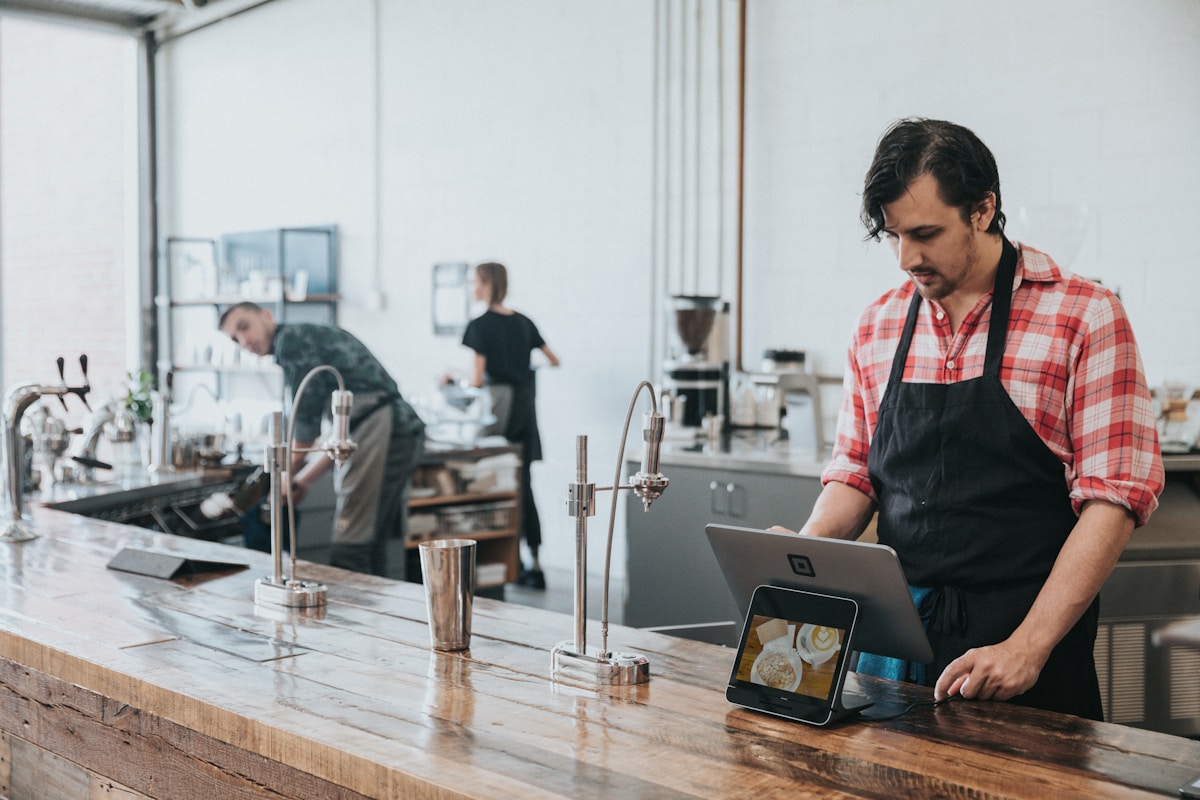 No tickets on KDS despite active orders indicates routing or connectivity issues
The most critical KDS problem—orders aren't reaching the kitchen. Here's how to diagnose:
Check POS-KDS connection status: Most KDS systems show connection indicators. Red or disconnected status means the POS isn't communicating. Check network cables or wifi connection.
Verify routing rules: Your POS routes different items to different KDS stations (grill, cold prep, expo). Check routing configuration. Someone may have accidentally changed rules, sending all orders to a single station or nowhere at all.
Test with manual ticket: Many KDS systems let you manually create test tickets. If manual tickets appear but POS orders don't, the problem is POS-side configuration.
Check printer queue: If you're transitioning from paper to KDS and ran both simultaneously, printer queues can intercept orders. Disable legacy print destinations.
Restart KDS and POS: Turn off KDS, wait 30 seconds, restart. Then restart POS if needed. This resolves 60% of connectivity issues.
Network issues: KDS systems communicate via local network. If your network has problems, tickets won't transmit. Ping the KDS from POS terminal to verify network connectivity. Toast, Square, and other cloud systems need internet connectivity—check your connection.
For Toast KDS specifically, verify your "Kitchen Routing" settings under Restaurant Setup > Menus > Items. Each item needs assigned prep stations. Missing assignments = tickets vanish.
Problem: KDS Screen Frozen or Unresponsive
 Frozen screens require immediate attention during busy service
Frozen KDS screens cause instant chaos during dinner rush. Quick fixes:
Force application restart: Most KDS tablets and displays have power buttons. Long-press 10 seconds to force shutdown, then restart. This clears memory crashes and frozen processes.
Check for overheating: KDS screens near grills and fryers overheat. If the screen feels very hot, it may have thermal shutdown. Move it away from heat sources or add cooling fans.
Clear old tickets: Some KDS systems slow down with 50+ active tickets on screen. Archive or complete old orders to free memory. Set up auto-completion rules for orders over 2 hours old.
Update firmware: Outdated KDS firmware causes stability problems. Check manufacturer website for updates. Square and Toast push updates automatically; third-party systems require manual updates.
Memory issues: Older tablets running KDS apps (especially iPad-based systems) run out of memory. Close background apps. For dedicated KDS hardware, contact manufacturer if freezing persists.
Hardware failure: If screens freeze daily despite troubleshooting, the tablet or display might be failing. Symptoms include artifacts on screen, partial display, or random reboots. Request replacement hardware.
TouchBistro users: Force-quit the app via iPad multitasking, then relaunch. If problems persist, offload and reinstall the TouchBistro KDS app (Settings > General > iPad Storage).
Problem: Tickets Routing to Wrong Stations
 Incorrect routing sends salads to the grill and steaks to cold prep
Orders appearing on wrong KDS screens waste time and confuse kitchen staff. Fix routing errors:
Review item routing configuration: Every menu item needs assigned prep station(s). Salads route to cold prep, steaks to grill, fries to fry station. Check POS menu management for each item's routing.
Check for duplicate items: If you have "Burger" configured in multiple menu sections with different routing, orders may route inconsistently. Consolidate duplicate items.
Verify station names: If you renamed KDS stations but didn't update item routing, items route to old station names (which no longer exist). Synchronize station names across POS and KDS.
Modifiers causing routing issues: Some systems route based on modifiers. "Burger with no cheese" might route differently than standard burger if modifier routing is configured. Review modifier routing rules.
Test each item: Send test orders for every menu item to verify correct routing. Time-consuming but catches problems before customers notice.
Multi-item orders splitting incorrectly: Complex orders with items for different stations should route appropriately. Burger + salad should appear on both grill KDS and cold prep KDS. If entire order routes to one station, check "order splitting" settings.
Lightspeed users: Navigate to Setup > Kitchen Display System > Routing Rules. Drag menu categories to corresponding KDS screens. Items inherit category routing unless overridden individually.
Problem: Ticket Timing and Delays
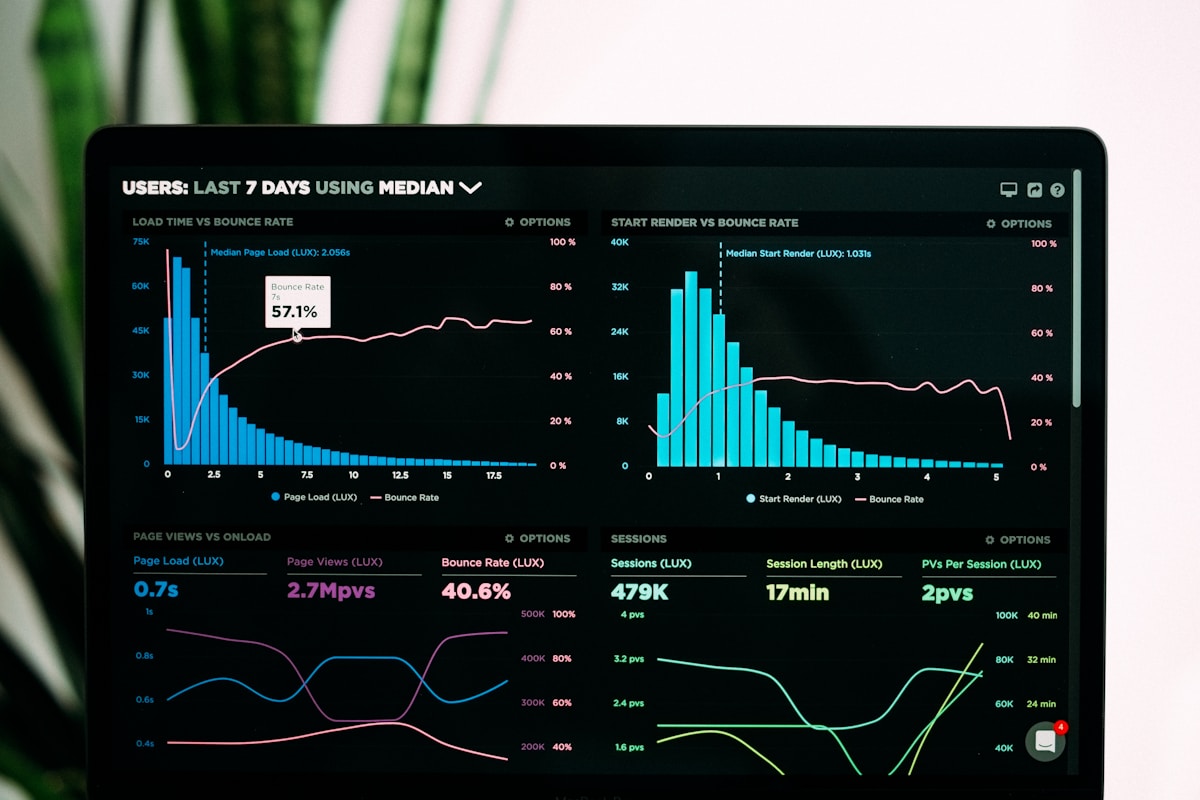 Delayed ticket timestamps cause kitchen coordination problems
Accurate timing is critical for kitchen coordination. Troubleshoot timing issues:
Delayed ticket transmission: Orders should appear on KDS within 5 seconds of POS entry. Longer delays indicate network congestion or processing bottlenecks. Test network speed—KDS needs stable 10+ Mbps connection.
Incorrect timestamps: Tickets showing wrong times suggest clock synchronization problems. Ensure POS and KDS use NTP (network time protocol) for automatic time sync. Manually synced clocks drift over time.
Coursing problems: If apps appear at the same time as entrees, coursing rules aren't configured. Set up automated delays: appetizers immediate, entrees after 10 minutes, desserts after entrees complete.
Prep time estimates inaccurate: KDS systems calculate expected completion times based on prep time estimates. If estimates are wrong (saying burgers take 5 minutes when they actually take 12), the entire kitchen flow breaks. Audit prep time settings quarterly.
Rush orders not prioritizing: Important orders (VIPs, online orders with pickup times) should display prominently. Configure priority flags and color coding. High-priority tickets in red, standard in white.
Bump times recording incorrectly: When staff "bump" completed tickets off screens, those timestamps feed analytics. If bump behavior is inconsistent (servers bumping before food leaves kitchen), timing reports become useless. Train staff on proper bump procedures.
For Toast, edit prep times under Menu Management > Items > Prep Time. For Square KDS, prep times are set in Square Dashboard > Items > Item Details.
Learn about restaurant tech stack essentials
Problem: KDS Not Connecting to Network
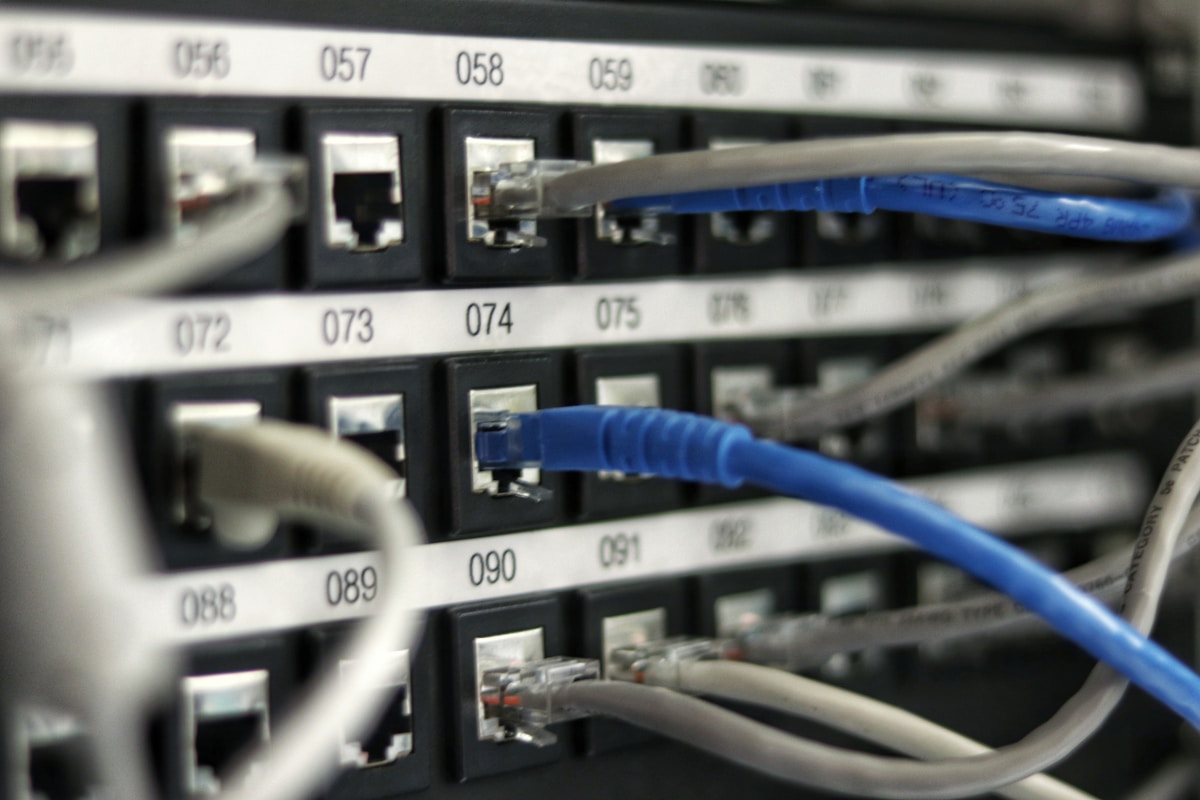 Network connectivity issues prevent POS-KDS communication
Network problems are common KDS killers. Troubleshoot connectivity:
Ethernet vs Wifi: Hardwired ethernet connections are more stable than wifi for KDS. If using wifi, verify strong signal strength (3+ bars). Kitchen equipment creates interference—routers near microwaves and refrigerators suffer dropped connections.
IP address conflicts: If multiple devices use the same IP address, network communication fails. Set static IP addresses for KDS screens rather than relying on DHCP. Prevents conflicts after network changes.
Firewall blocking KDS: Corporate or restaurant wifi networks might block ports KDS needs. KDS typically uses ports 443, 80, and custom ports for specific systems. Whitelist KDS traffic in firewall settings.
Router/switch problems: If all KDS screens lose connection simultaneously, check your network router or switch. Restart network equipment. Aging routers fail under load—upgrade to business-grade equipment.
Cloud KDS internet requirements: Toast, Square, and other cloud-based KDS require constant internet connectivity. If internet drops, you lose KDS. Consider backup internet connection (cellular failover) for business continuity.
VPN interfering: Some restaurants use VPNs for corporate network access. VPNs can interfere with local KDS communication. Ensure KDS traffic doesn't route through VPN.
Quick network test: From KDS device, try accessing the internet (open browser, visit google.com). If internet works but KDS doesn't connect to POS, problem is application-level. If internet fails, network infrastructure is the issue.
Problem: Printer Integration Failures
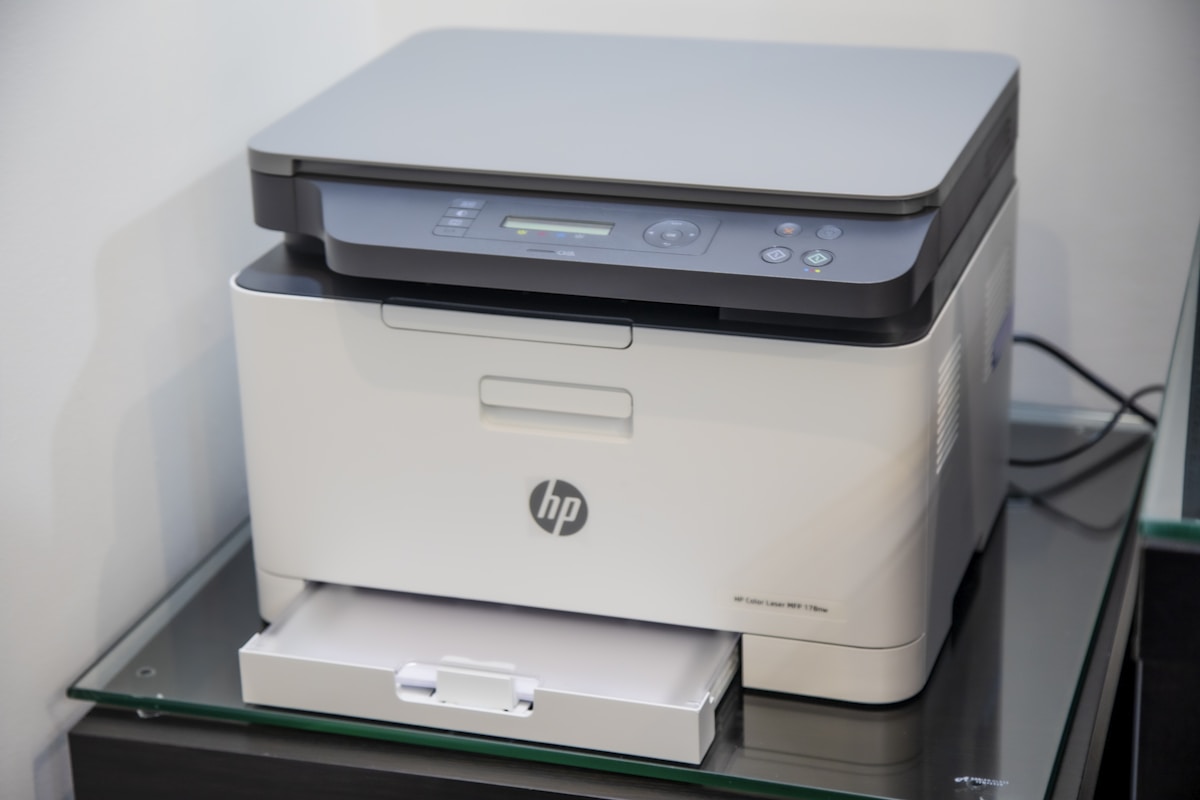 Printer integration issues cause missing tickets and order tracking problems
Many restaurants use hybrid KDS + printer setups. Troubleshoot printer problems:
Check printer connection: KDS printers connect via ethernet, USB, or Bluetooth. Verify connections are secure. Ethernet printers should respond to ping tests. USB printers should show in device manager.
Verify printer configuration: In KDS settings, check assigned printer for each station. If grill KDS routes to wrong printer, tickets print in wrong area.
Paper jams and printer errors: Check printer display for error codes. Common issues: paper jams, out of paper, low ink/ribbon. Clear jams, replace consumables.
Print format issues: If tickets print but formatting is wrong (cut-off text, missing items), adjust print template settings. Most KDS systems let you customize ticket layouts.
Network printer offline: Network printers need static IP addresses. If the printer's IP changed, KDS can't find it. Set static IP and update KDS configuration with correct address.
Legacy printer compatibility: Older Epson TM and Star TSP printers may not support modern KDS systems. Check manufacturer compatibility lists before investing in KDS.
Backup printer not triggering: If your primary KDS screen fails, backup printer should activate automatically. Test failover procedures during slow periods.
Square KDS supports specific printer models: Star TSP143III, Epson TM-m30, and TSP654II. Using unsupported models causes integration problems.
Problem: Orders Appearing Multiple Times (Duplicate Tickets)
 Duplicate tickets waste prep time and ingredients
Duplicate tickets on KDS lead to wasted food and kitchen confusion. Root causes:
Double-firing from POS: Impatient servers clicking "Send to Kitchen" multiple times creates duplicates. Train staff to send orders once. Modern POS systems show "Sent" confirmation—watch for it.
Integration sync issues: Third-party delivery integrations (Uber Eats, DoorDash) sometimes send orders twice if API confirmation fails. Check integration logs for duplicate transmissions. Contact delivery platform support.
Coursing creating duplicates: If coursing is misconfigured, the same item might appear multiple times with different firing times (app immediately, same app again in 10 minutes). Review coursing rules.
Modify vs new order confusion: Modifying an existing order sometimes creates new ticket rather than updating original. Depends on POS system behavior. Toast updates tickets; some systems create new ones.
Network retry logic: If network is unstable, KDS might receive partial order, request retransmission, resulting in duplicates. Improve network stability to prevent retry loops.
Manual ticket creation: If staff manually create tickets in KDS for phone orders, they might duplicate orders already in POS. Establish clear procedures—enter ALL orders through POS, never manually in KDS.
Check KDS logs for duplicate ticket IDs. Identical IDs indicate transmission problem. Different IDs with identical contents suggest POS-side duplication.
Problem: Expo Screen Not Syncing with Prep Stations
 Expo screen must reflect real-time status of all prep stations
Expo screens aggregate all prep stations for final quality check. Sync problems:
Bump rules not configured: When grill marks burger complete, expo screen should automatically update. If expo shows items as incomplete after prep stations bump them, bump-forwarding rules aren't set up.
Individual station override: If prep cooks manually edit tickets or mark items incomplete, expo won't reflect changes unless bidirectional sync is enabled.
Network lag between stations: All KDS screens should operate on same network with low latency. Wifi lag causes expo screen to update seconds after prep stations bump tickets. Use ethernet for expo screen.
Order modification after fire: If servers modify orders after sending to kitchen, changes might not propagate to all screens. Enable "order update notifications" to alert kitchen of modifications.
Partial fulfillment: For orders with items from multiple stations, expo should only show "Ready" when ALL stations complete their items. Check "assembly logic" settings.
Train expo staff to verify accuracy rather than blindly trusting the screen. Technology aids but doesn't replace human oversight.
Preventive Maintenance for KDS
 Regular maintenance prevents emergency KDS failures
Prevent future KDS problems with routine maintenance:
Weekly: Clean screens with microfiber cloth and approved screen cleaner. Kitchen grease builds up, making screens hard to read. Check for loose cables.
Monthly: Review routing rules for any menu changes. Restart all KDS devices during slow periods to clear memory. Test backup printer failover.
Quarterly: Update KDS firmware and software. Review prep time estimates against actual kitchen performance. Audit network equipment (replace aging routers).
Annually: Replace tablets/screens showing signs of wear. Refresh network cabling. Comprehensive training refresher for all kitchen staff on proper KDS usage.
Documentation: Maintain troubleshooting documentation specific to your setup. When you fix problems, document the solution. Next time it happens (it will), you'll fix it faster.
Backup plan: What happens if KDS completely fails during dinner rush? Keep thermal printers as backup. Train one manager on manual ticket printing procedures. Test backup quarterly.
When to Call Professional Support
 Some KDS problems require manufacturer or technical support
Some problems need professional help:
- Hardware failures (cracked screens, dead tablets, non-responsive devices)
- Persistent network issues after basic troubleshooting
- Software bugs or application crashes
- Integration problems with third-party systems
- Customization beyond standard settings
- Database corruption or data loss
Before calling support, gather information:
- Exact error messages (take photos)
- When problem started
- What changed recently
- Steps to reproduce the issue
- Which devices are affected
Contact information for major KDS providers:
- Toast Support: (617) 297-1005 (24/7)
- Square Support: Visit squareup.com/help
- TouchBistro: support@touchbistro.com
- Lightspeed: (855) 909-0334
Learn about choosing the right KDS
Conclusion
 Well-maintained KDS systems enable efficient kitchen operations
Kitchen display systems dramatically improve restaurant efficiency—when they work properly. Most KDS problems stem from network connectivity, configuration errors, or hardware issues. Systematic troubleshooting resolves the majority of problems quickly.
Establish preventive maintenance routines to catch issues before they impact service. Train multiple staff members on basic troubleshooting—don't rely on one tech-savvy person. Document your specific setup and solutions for faster future resolution.
When KDS failures do occur, stay calm and follow logical diagnostic steps. Check connections, verify settings, test components individually. Most importantly, maintain backup systems so technology failures don't shut down your kitchen.
KDS technology transforms restaurant operations, but only if you keep it running smoothly.
More Articles
AI-Powered Restaurant Inventory Forecasting: Reduce Waste and Boost Profits
Discover how AI inventory forecasting predicts demand, optimizes orders, and reduces food waste. Machine learning tools for smarter restaurant inventory management.
Appetito Menu Review: Multilingual QR Menus for Restaurants
Complete Appetito Menu review covering multilingual QR menu features, pricing, setup process, and how it compares to Fuudey, Menu Tiger, and alternatives.
Best Free QR Code Menu Generator in 2025 (7+ Reviewed)

We tested 8 free QR code menu generators including Fuudey, QR Menu Creator, Menuu, ScanIt.menu, and more. Full comparison with pricing, features, and honest reviews.