
How to Set Up Free Online Ordering for Your Restaurant (2026 Complete Guide)
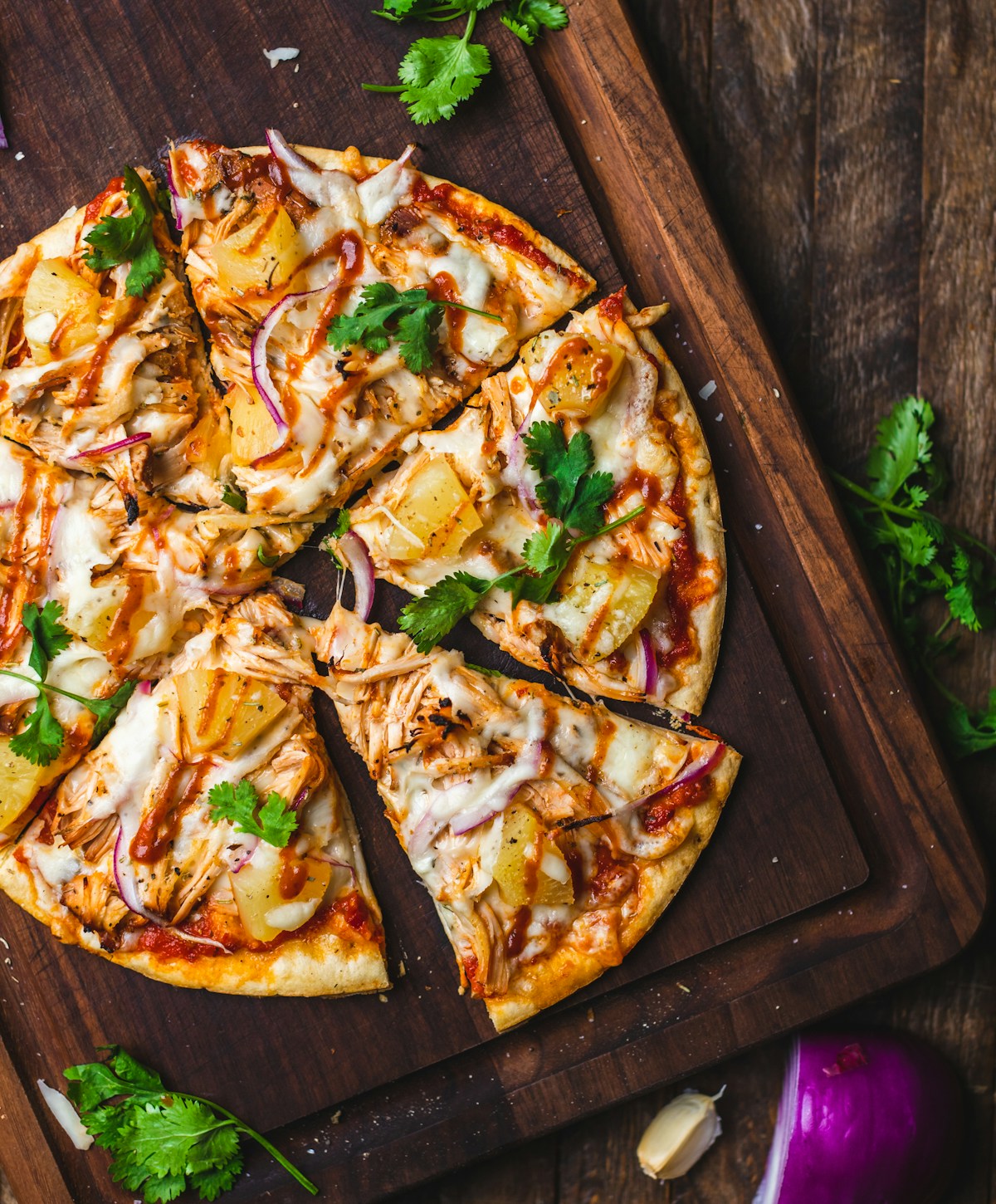
Online ordering doesn't have to cost a fortune. This guide shows you how to set up a complete ordering system — including delivery, pickup, and reservations — for free using GloriaFood.
Why Restaurants Need Online Ordering
 Online ordering is no longer optional for modern restaurants
Customers expect to order online. Whether it's delivery, pickup, or dine-in pre-orders, having a system in place captures orders you'd otherwise lose to competitors.
The problem? Most online ordering platforms take 15-30% commissions on every order. For thin-margin restaurants, that's brutal.
GloriaFood offers a genuinely free solution with no commissions on pickup orders, making it one of the best options for restaurants wanting to avoid the DoorDash and Uber Eats fee trap.
Step 1: Create Your GloriaFood Account
 Setup takes about 10-15 minutes from start to finish
Head to GloriaFood and begin account creation:
- Enter your restaurant's name, phone number, and address
- Move the map pin to your exact physical location
- Indicate whether you have an existing website
- Select your cuisine type (add custom if not listed)
- Validate your account via the email confirmation
Once validated, set a password and you're into the admin dashboard.
Step 2: Configure Services and Hours
 Define exactly where you'll deliver and when you're open
Enabling Service Types
GloriaFood supports four service types:
- Pickup — Customers order online, collect in-store
- Delivery — You deliver to customer locations
- Table Reservations — Bookings sync with your order-taking app
- Order Ahead — Pre-orders for dine-in (reduces wait times)
Enable the services that apply to your operation.
Setting Delivery Zones
For delivery, you can create multiple zones with different parameters:
- Click Add Another Zone
- Draw circle or polygon shapes on the map
- For polygon zones, click Shape then point-and-click to define boundaries
- Set minimum order value per zone
- Set delivery fee per zone
Different zones can have different fees — charge more for distant deliveries.
Operating Hours
Click Add Hours to set when you're open:
- Select days of the week
- Set opening and closing times
- Optionally set different hours for different services (e.g., delivery ends earlier than pickup)
Pro Tip: Enable "Order for Later" to accept orders outside business hours. Orders queue up and appear when you open the next day.
Step 3: Configure Taxes and Payments
 Set up payment processing and tax handling
Tax Settings
Choose your tax model:
- Prices include tax — Common in many countries
- Tax added at checkout — Standard in the US
You can also set different tax rates for:
- Different services (pickup vs. delivery)
- Different item categories (food vs. alcohol)
Payment Methods
Enable the payment options that work for you:
- Cash on delivery/pickup — No setup required
- Card on delivery — Customers pay driver
- Online payment — Requires gateway connection
If you have a merchant account with a compliant payment gateway, connect it in the Payments section to accept online payments.
Step 4: Install the Order-Taking App
 Orders arrive directly to your phone or tablet
GloriaFood works through a mobile app on your phone or tablet:
- Choose your device type (iOS or Android)
- Enter your phone number
- Receive download link via SMS
- Install and log in
Once connected, your admin dashboard shows "Connected" status. When orders arrive, you'll receive push notifications.
First-Time App Setup
The app walks you through:
- How to review incoming orders
- How to accept/reject orders
- How to set estimated delivery times
- Adding menu items and modifiers
Step 5: Build Your Digital Menu
Your menu needs photos and clear descriptions to maximize orders
Add your menu items directly in the app or web dashboard:
Creating Categories
- Click Add Category
- Name the category (e.g., "Starters," "Mains," "Drinks")
- Categories organize your menu for customers
Adding Items
For each menu item:
- Enter name and description
- Add pricing (single or multiple sizes)
- Upload a photo (items with photos convert better)
- Assign to a category
Setting Up Add-Ons
Add-ons (modifiers) attach to items via drag-and-drop:
- Create add-on groups (e.g., "Extra Toppings")
- Set prices for each option
- Assign to categories, items, or specific sizes
Note: GloriaFood offers a paid service to build your menu for you if you'd rather not do it yourself.
Step 6: Publish Your Ordering System
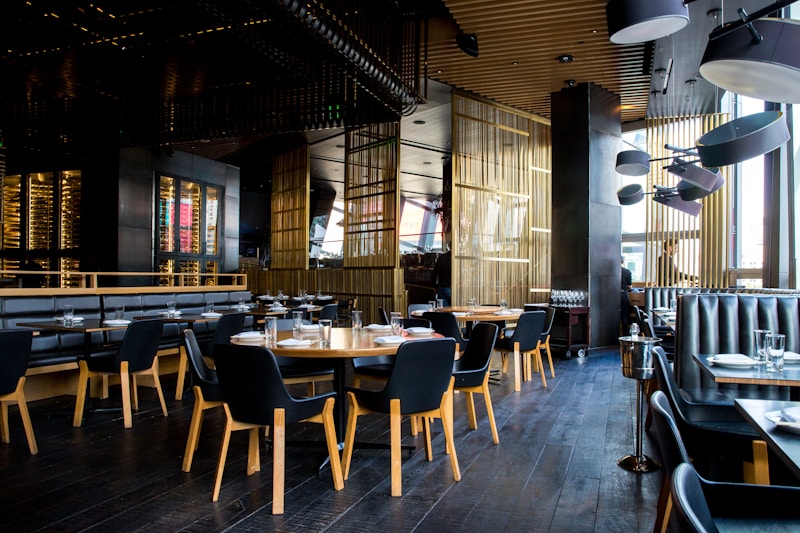 Multiple ways for customers to find your ordering system
GloriaFood provides five ways for customers to order:
1. Facebook Ordering
Add ordering directly to your Facebook business page:
- Go to your Facebook page
- Click Add a Button
- Choose Start Order action
- Paste the link provided by GloriaFood
- Save
Customers can now order directly from Facebook.
2. Sales-Optimized Website
GloriaFood offers a pre-built restaurant website for $9/month:
- Conversion-optimized design
- SEO-friendly structure
- Instant preview before purchase
- Easy customization
Not required, but useful if you don't have a website.
3. Your Existing Website
If you already have a website, embed the ordering widget:
- Go to Legacy Website publishing option
- Copy the HTML code provided
- Paste into your website builder
GloriaFood provides specific instructions for:
- WordPress
- Wix
- Squarespace
- Weebly
- Duda
- Joomla
- Drupal
- Static HTML sites
4. FoodBooking Marketplace App
FoodBooking is GloriaFood's shared marketplace app:
- Customers discover local restaurants
- Commission-free (unlike DoorDash/Uber)
- Requires approval before listing
- Free exposure to existing app users
5. Branded Mobile App
For $59/month, get a custom-branded app:
- Your restaurant name and logo
- iOS and Android versions
- Direct relationship with customers
- Skip if budget is tight
Step 7: Set Up Promotions
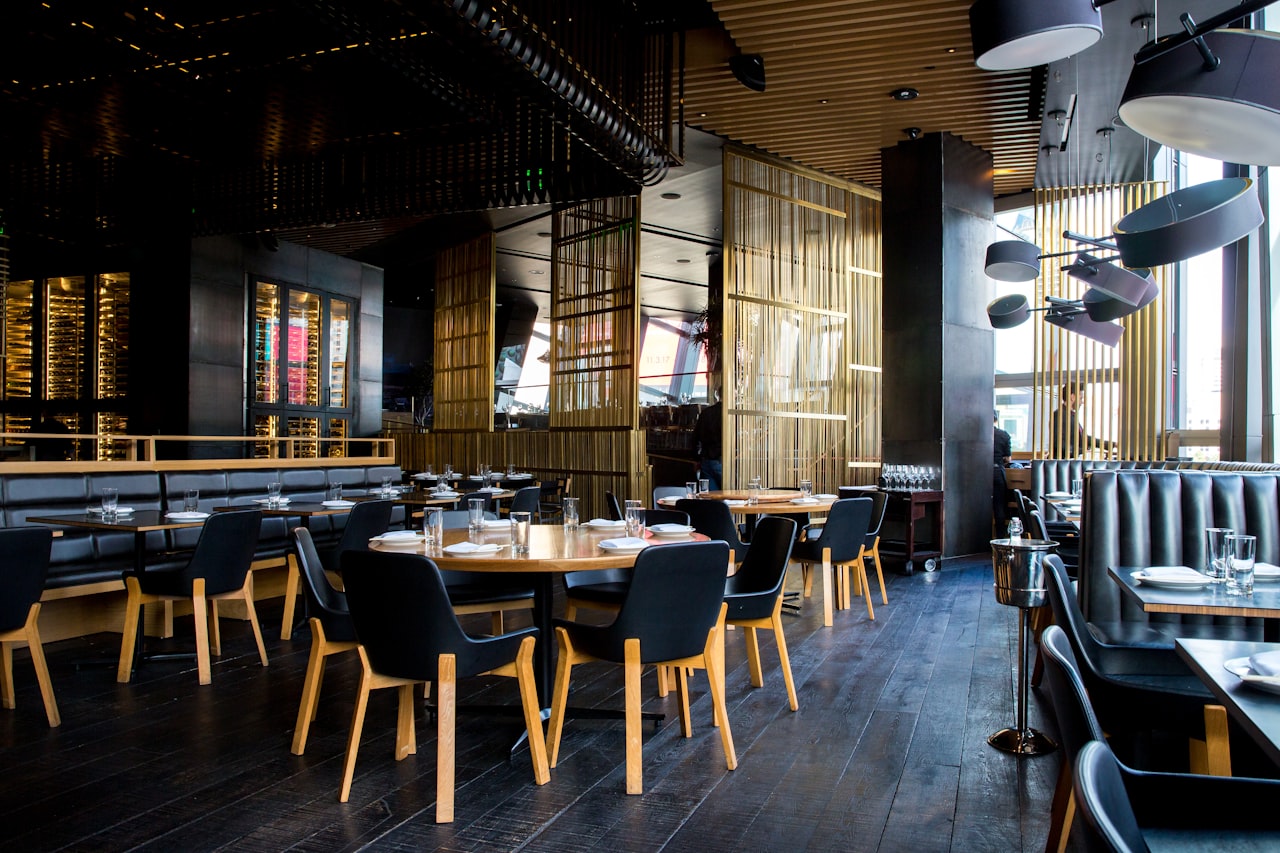 Promotions encourage first-time online orders
The Kickstarter module helps convert existing customers to online ordering:
- Enable Kickstarter in your dashboard
- Create a promotional offer (e.g., "10% off first online order")
- Customize the campaign messaging
- Share with customers who previously ordered by phone or walk-in
This drives adoption of your online ordering system.
No-Contact Delivery Setup
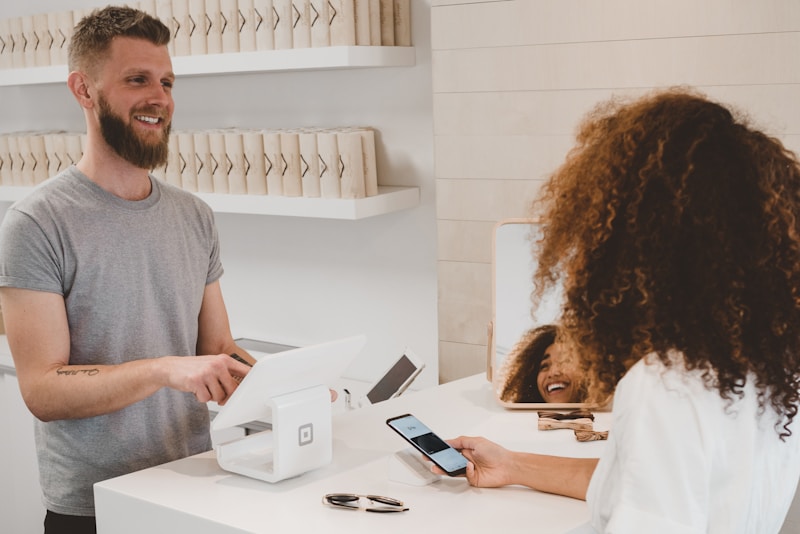 Setting up safe, contactless delivery options
For health-conscious customers, enable contactless delivery:
- Go to Fulfillment settings
- Enable No-Contact Delivery option
- Available for orders paid online (removes payment exchange at door)
Customers select this option at checkout.
Alert Calls
 Never miss an order with alert calls
Never miss an order, even if your device is offline:
- Enable Alert Calls in settings
- If your order-taking device goes offline
- GloriaFood calls your restaurant when someone tries to order
- Prevents lost sales during connectivity issues
GloriaFood Alternatives
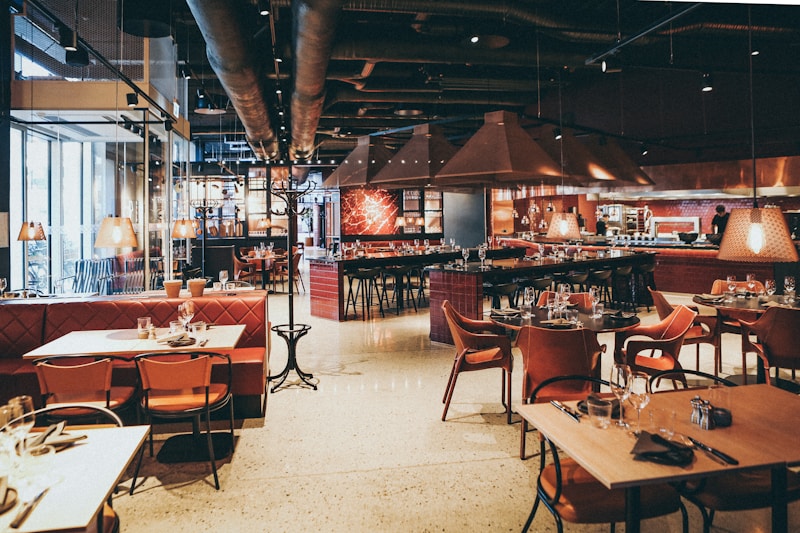 Other options to consider
While GloriaFood offers the best free option, consider these alternatives:
Fuudey
Fuudey offers free QR menu and ordering that works well for dine-in contactless ordering. If you need tableside ordering rather than delivery, it's worth considering. See our QR menu comparison.
Square Online
Square Online integrates with Square POS. Free for pickup orders, fees for delivery. Good if you already use Square. See our Square setup guide.
ChowNow
Higher-end option for restaurants wanting more customization. Monthly fee but no per-order commissions.
Frequently Asked Questions
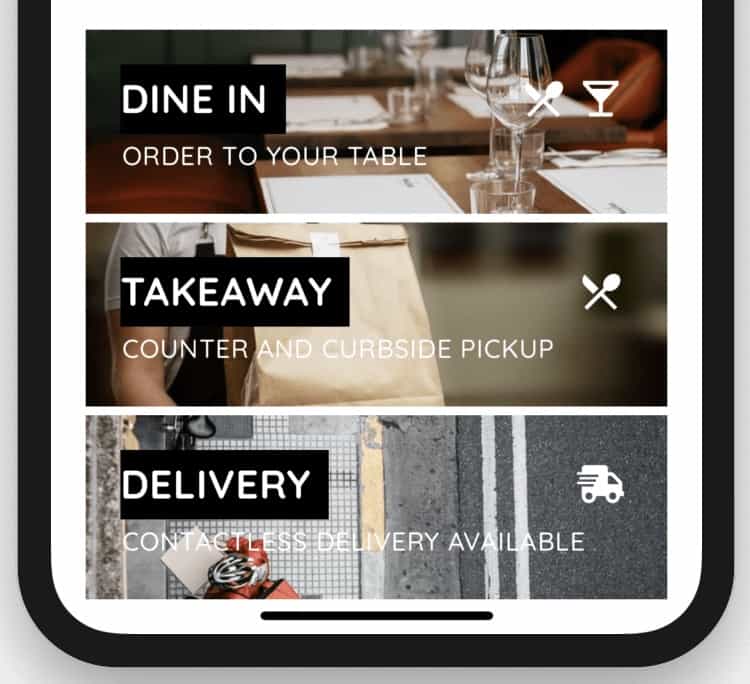 Common questions about free online ordering systems
Is GloriaFood really free?
Yes, the core ordering system is free with no per-order commissions. Paid add-ons (branded app, website builder) are optional.
How does GloriaFood make money?
Through optional paid services: branded mobile apps, sales-optimized websites, menu building services, and premium features.
Can I use GloriaFood with my existing POS?
GloriaFood is a standalone ordering system. Orders come to the GloriaFood app, which you then enter into your POS manually. For integrated solutions, consider Square or Toast (with caveats).
What payment processors does GloriaFood support?
GloriaFood integrates with multiple payment gateways. Check their current list, as available processors vary by country.
Can I change my delivery zones later?
Yes, you can edit delivery zones, fees, and minimum orders anytime from your dashboard.
Conclusion
 Online ordering increases revenue without third-party commissions
Setting up free online ordering takes about 15 minutes with GloriaFood. You get pickup, delivery, reservations, and order-ahead — all without paying commissions on every order.
The key steps:
- Create account and verify
- Set services and hours
- Configure delivery zones
- Set up payment methods
- Build your digital menu
- Publish to Facebook, website, or both
For dine-in QR ordering specifically, check our free QR menu generator guide. For full POS systems with built-in ordering, see our restaurant POS comparison.
More Articles
AI-Powered Restaurant Inventory Forecasting: Reduce Waste and Boost Profits
Discover how AI inventory forecasting predicts demand, optimizes orders, and reduces food waste. Machine learning tools for smarter restaurant inventory management.
Appetito Menu Review: Multilingual QR Menus for Restaurants
Complete Appetito Menu review covering multilingual QR menu features, pricing, setup process, and how it compares to Fuudey, Menu Tiger, and alternatives.
Best Free QR Code Menu Generator in 2025 (7+ Reviewed)
We tested 8 free QR code menu generators including Fuudey, QR Menu Creator, Menuu, ScanIt.menu, and more. Full comparison with pricing, features, and honest reviews.