
How to Set Up Square Self-Serve Ordering (QR Code Tableside Ordering Guide)

Square's self-serve ordering lets customers scan a QR code, browse your menu, place orders, and pay — all from their own phone. This guide walks through the complete setup process.
What Is Square Self-Serve Ordering?
 Self-serve ordering frees staff to focus on hospitality instead of order-taking
With self-serve ordering, customers handle their own order process:
- Scan QR code at their table, seat, or section
- Browse your menu on their mobile device
- Select items and customize with modifiers
- Pay immediately or keep tab open throughout visit
- Close tab when ready to leave
Orders go directly to your Square POS and kitchen display system. Staff delivers food and provides service — but doesn't need to take orders or process payments.
Benefits of Self-Serve Ordering
 Key advantages of self-serve ordering
For Customers
- Order when ready — No waiting for servers
- Browse comfortably — Take time to read descriptions
- Easy customization — Select modifiers without awkward requests
- Pay on own time — No flagging down staff for the check
For Restaurants
- Increased efficiency — Staff handles more tables
- Higher order values — Visual menus drive add-ons
- Reduced errors — Orders go directly to kitchen
- Better peak handling — System scales with demand
According to Square's own data, restaurants using self-serve ordering see 10-15% higher average tickets.
Step 1: Enable Items for Self-Serve
 Choose which menu items appear in your self-serve ordering menu
Not all items need to be available for self-serve. Enable specific items:
- Go to Square Online Dashboard
- Navigate to Items → Site Items
- Click on an item you want available
- Scroll to Fulfillment section
- Check Self-Serve Ordering
- Save changes
Bulk Enable Items
For faster setup with many items:
- Select multiple items using checkboxes
- Click Bulk Edit
- Enable Self-Serve Ordering for all selected
- Save
All enabled items will appear when customers scan your QR codes.
Step 2: Configure Your QR Codes
 Create QR codes mapped to specific tables, sections, or seats
Square offers two QR code approaches:
Option A: Mapped QR Codes
Each table/seat has a unique QR code:
- Go to Square Online Dashboard
- Navigate to Fulfillments → Self-Serve Ordering
- Select your location
- Enter number of stations (tables/seats)
- Label stations (Table 1, Table 2, Bar Seat A, etc.)
- Create sections if needed (Indoor, Patio, Bar)
When customers scan, their table/seat is automatically identified.
Option B: Universal QR Code
One QR code throughout your venue:
- Follow same steps above
- Enable "Let customers enter their station"
- Print one universal QR code
- Customers manually enter table number when ordering
Best for: Flexible seating, quick-service, or venues with changing layouts.
Step 3: Set Up Sections
 Organizing stations for efficient service
For larger venues, organize stations into sections:
Example Structure:
- Indoor — Tables 1-20
- Patio — Tables 21-30
- Bar — Seats A-Z
- Private Dining — Tables 31-35
Each section can have its own QR codes, making order routing clearer for staff.
Step 4: Print Your QR Codes
 Place QR codes where customers can easily scan them
From the Self-Serve Ordering settings:
- Click Print QR Codes
- Choose format:
- Individual codes per table
- Full sheet for cutting
- Custom design export
- Download or print directly
QR Code Placement Tips
- Eye level when seated
- Laminate or use stands for durability
- Include brief instructions ("Scan to order")
- Multiple codes per large table for easy access
Square also provides design templates if you want branded QR code displays.
Step 5: Configure Customer Experience
 Customizing the ordering experience
Review what customers see when they scan:
Menu Display
Verify your item layout:
- Categories are organized logically
- Descriptions are clear and appetizing
- Photos display correctly (recommended)
- Prices and modifiers show accurately
Collection Instructions
Add instructions for order pickup:
- "Your order will be delivered to your table"
- "Listen for your name at the counter"
- "Pick up at the bar when ready"
Customize these messages in your Self-Serve settings.
How Self-Serve Orders Work
 Understanding the order workflow
When a customer places an order:
Order Flow
- Customer submits order from their phone
- Order appears in Order Manager labeled as self-serve
- Ticket prints/displays on kitchen display system
- Staff sees location (table number, seat, section)
- Staff delivers order to customer
Keeping Tabs Open
Customers can add items throughout their visit:
- First order creates the tab
- Additional items append to same tab
- Each addition prints a new kitchen ticket
- Customer pays when ready to leave
Automatic Tab Closure
Tabs auto-close after 2 hours of inactivity. The default tip amount you've configured applies automatically.
Step 6: Set Up Tips
 Configuring tip options
Configure default tip suggestions:
- Go to Square Online Dashboard
- Navigate to Settings → Checkout
- Set tip percentages (e.g., 15%, 20%, 25%)
- Set default selection if desired
Customers see these options at checkout.
Integrating with Kitchen Displays
 Connecting to your kitchen display system
For seamless operation, connect to your KDS:
- Self-serve orders route like any other order
- Tickets display with location info
- Staff taps to mark complete
- No manual entry required
If you're not using KDS, orders print to your configured kitchen printer.
Best Practices for Self-Serve Success
 Tips for successful self-serve ordering
Menu Optimization
- Add photos — Items with images sell 30% more
- Clear descriptions — Remove server explanation dependency
- Logical categories — Easy navigation increases conversions
- Highlight specials — Feature high-margin items
Staff Training
Train staff on the new workflow:
- How to assist customers with scanning
- Where to find self-serve orders
- How to identify table locations
- Troubleshooting common issues
Hybrid Approach
Consider offering both options:
- QR codes available on tables
- Staff can still take orders traditionally
- Customers choose their preference
- Gradual adoption increases success
Troubleshooting Common Issues
 Solving common problems
"My QR code won't scan"
- Ensure code is large enough (min 2.5cm)
- Check for glare or damage
- Provide manual URL as backup
"Orders aren't reaching kitchen"
- Verify printer/KDS connection
- Check item fulfillment settings
- Confirm self-serve is enabled for items
"Wrong table numbers"
- Review station mapping
- Ensure QR codes are placed correctly
- Consider universal code with customer input
Frequently Asked Questions
 Common questions about Square self-serve ordering
Is Square self-serve ordering free?
Self-serve ordering is included with Square Online (free tier available). Standard payment processing fees apply (2.6% + 10¢).
Can customers order without paying immediately?
Yes — customers can keep tabs open and add items throughout their visit. They pay when ready to leave, or tabs auto-close after 2 hours.
Does this work with my existing Square POS?
Yes — self-serve orders appear in your Order Manager alongside regular orders. They're fully integrated with your Square system.
What if a customer doesn't have a smartphone?
Staff can take orders traditionally. Self-serve is an option, not a requirement. Keep your standard service available.
Can I use this for counter service?
Yes — Square's self-serve works for table service, counter service, bars, and any configuration. Just set up your stations accordingly.
Conclusion
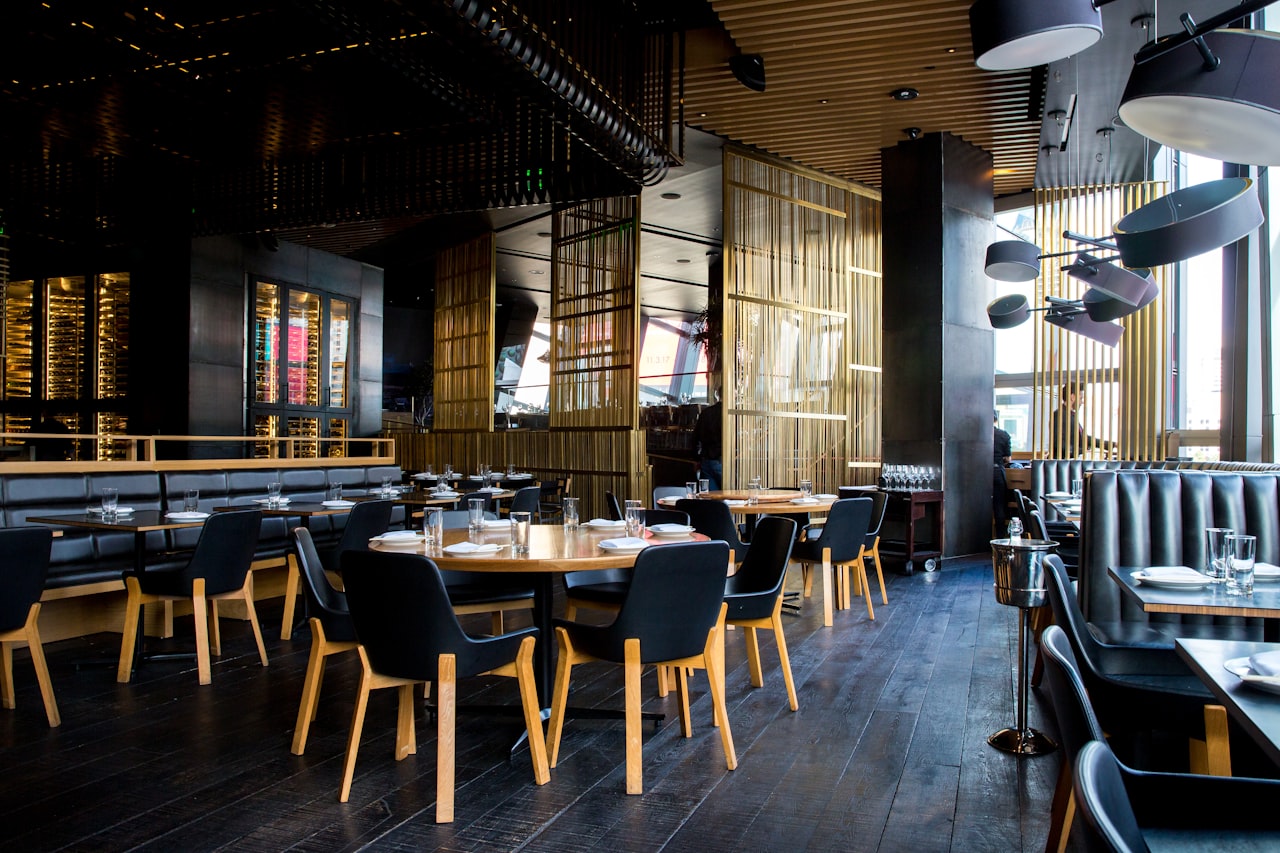 Self-serve ordering increases efficiency while improving customer experience
Square's self-serve ordering transforms how customers interact with your restaurant. The setup takes about 30 minutes:
- Enable items for self-serve
- Configure QR codes and sections
- Print and place QR codes
- Train staff on new workflow
- Launch and optimize
For restaurants already using Square, adding self-serve is the easiest path to contactless ordering. For those considering Square, see our complete POS comparison and menu setup guide.
Looking for alternatives? Check our QR menu generator comparison for platforms that work with any POS system.
More Articles
AI-Powered Restaurant Inventory Forecasting: Reduce Waste and Boost Profits
Discover how AI inventory forecasting predicts demand, optimizes orders, and reduces food waste. Machine learning tools for smarter restaurant inventory management.
Appetito Menu Review: Multilingual QR Menus for Restaurants
Complete Appetito Menu review covering multilingual QR menu features, pricing, setup process, and how it compares to Fuudey, Menu Tiger, and alternatives.
Best Free QR Code Menu Generator in 2025 (7+ Reviewed)

We tested 8 free QR code menu generators including Fuudey, QR Menu Creator, Menuu, ScanIt.menu, and more. Full comparison with pricing, features, and honest reviews.